1. First launch & setup
Start Forven for the first time, get through the setup wizard, and learn what every banner and button on the first screen means.
By the end of this guide Forven is running, the setup wizard is done, and you know what the first screen is telling you — including the red warnings a fresh install shows, and which ones you can ignore for now.
Before you start
Forven installed from source — see Install. You need about 10 minutes. No API keys are needed for anything in this guide.
Start Forven and open it
On Windows, run start_all.ps1 from your Forven folder — or use the desktop launcher described in Install. On macOS and Linux run bash start_all.sh. When the backend and frontend are up, open http://127.0.0.1:5173 in your browser.
There is no sign-in. Everything you see runs on your own machine.
Meet the setup wizard
A brand-new install opens the setup wizard over the dashboard. The left rail lists five steps; a yellow △ marks the two the app considers critical.
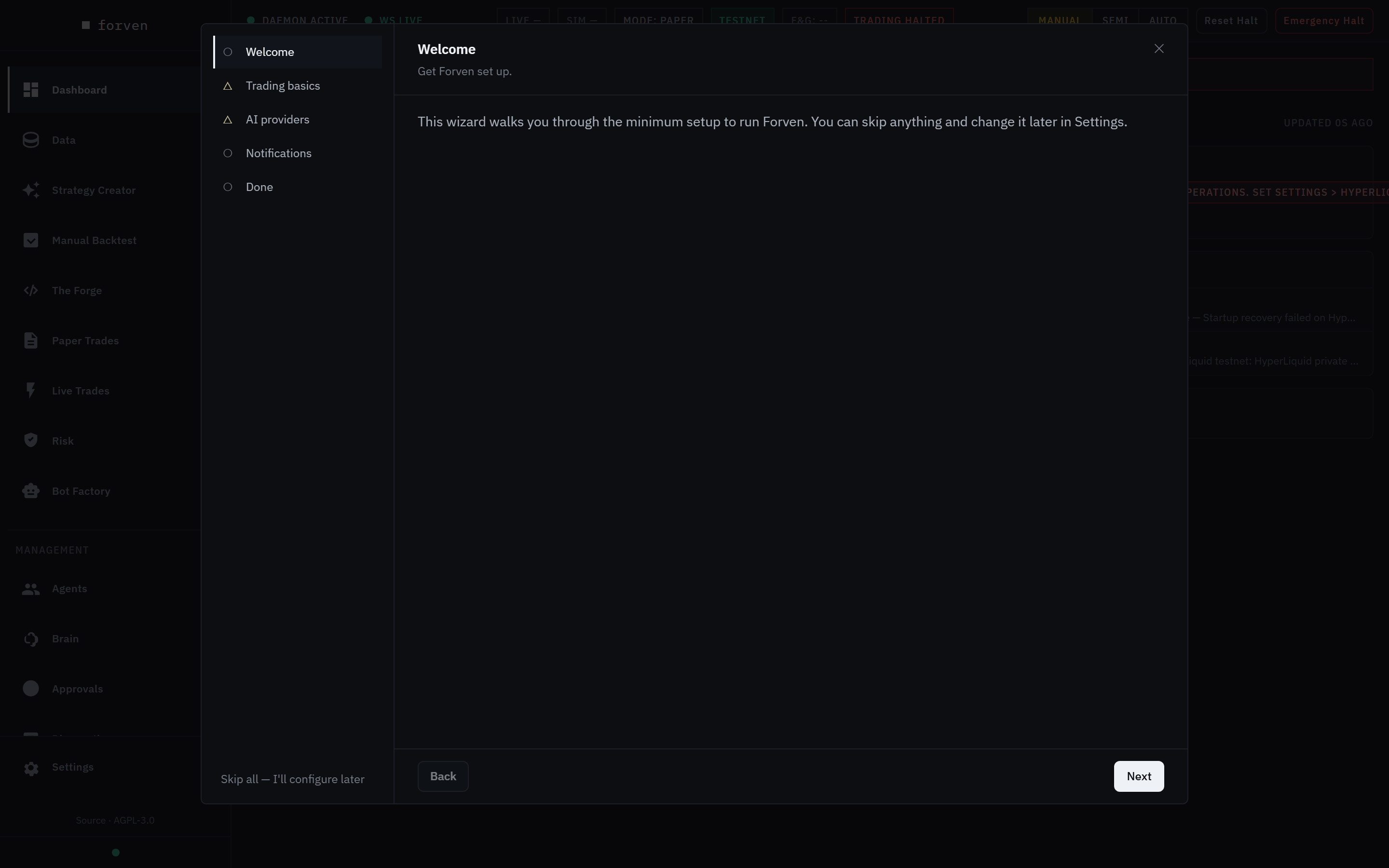 The wizard opens on its own the first time. Every step can be skipped and changed later in Settings.
Click Next to move through it, or click any step in the rail.
Trading basics — skip it for paper trading
This step connects Hyperliquid, the only exchange Forven places real orders on. It asks for a wallet address, an API wallet address and an API secret, with Hyperliquid testnet switched on by default.
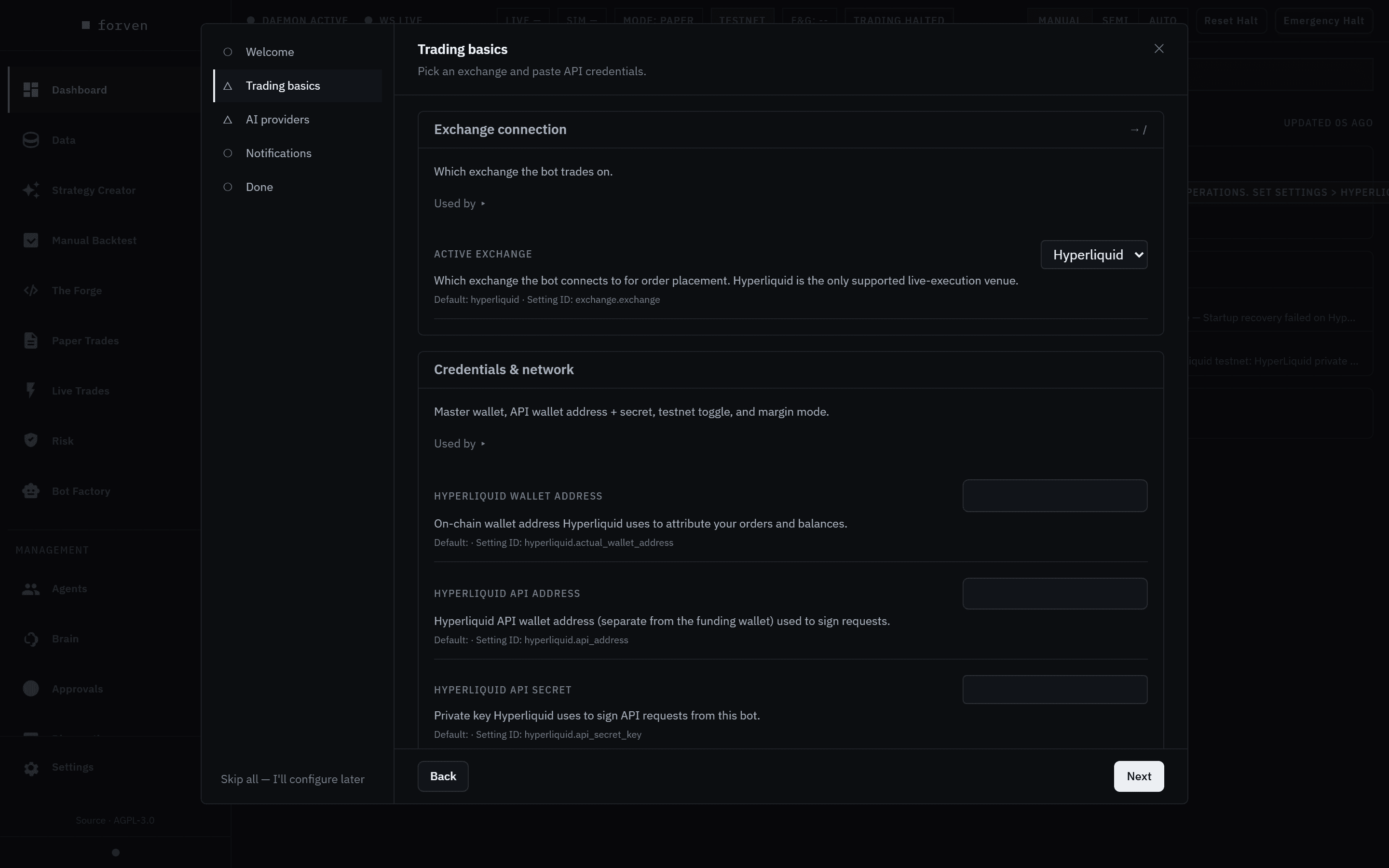 Trading basics only matters for orders on Hyperliquid. Backtests, the gauntlet and paper trading use public Binance data.
You don't need it to follow these walkthroughs: backtesting, the gauntlet and paper trading all run on public market data with fills simulated on your machine. Leave the fields empty and click Next, then confirm Skip Trading basics?.
The warning on this step
The banner says "Without an exchange API connection, Forven can't place paper or live orders." That isn't true of paper: paper fills are simulated locally and don't go through an exchange. Without credentials, though, the app reports trading as halted (step 6 below) — a warning about the exchange connection only. If you plan to try the exchange path later, create a testnet account and paste its keys here; never paste mainnet keys while you're learning.
AI providers — optional
Forven's agents need a model provider. Each row is one provider: paste an API key and press Save, or use Sign in with OAuth where it's offered (OpenAI's ChatGPT sign-in and MiniMax). LM Studio takes the base URL of a local server instead.
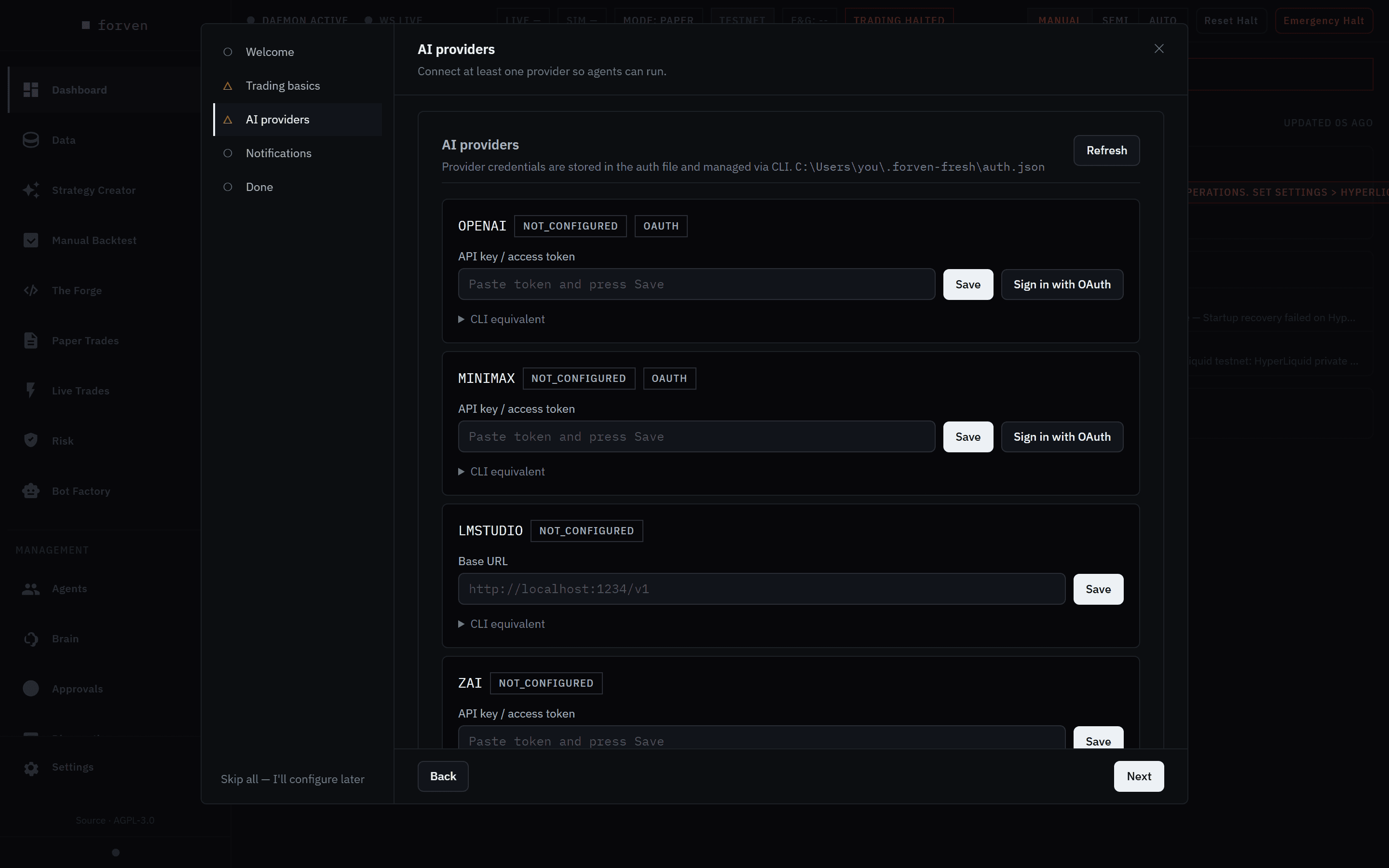 Keys are stored in auth.json inside your Forven home folder and never leave your machine.
Nothing in walkthroughs 1–7 needs an AI provider. Skip it now and come back in Put the agents to work, or connect one here if you already have a key.
Notifications, then finish
The Notifications step chooses which events pop up in the app and, optionally, sends them to Discord. The defaults are sensible; skip it.
On Done, the checklist shows what you set up. Click Finish — or, from any step, Skip all — I'll configure later. Either one marks the wizard complete. Closing it with ✕ does not: it will open again next time.
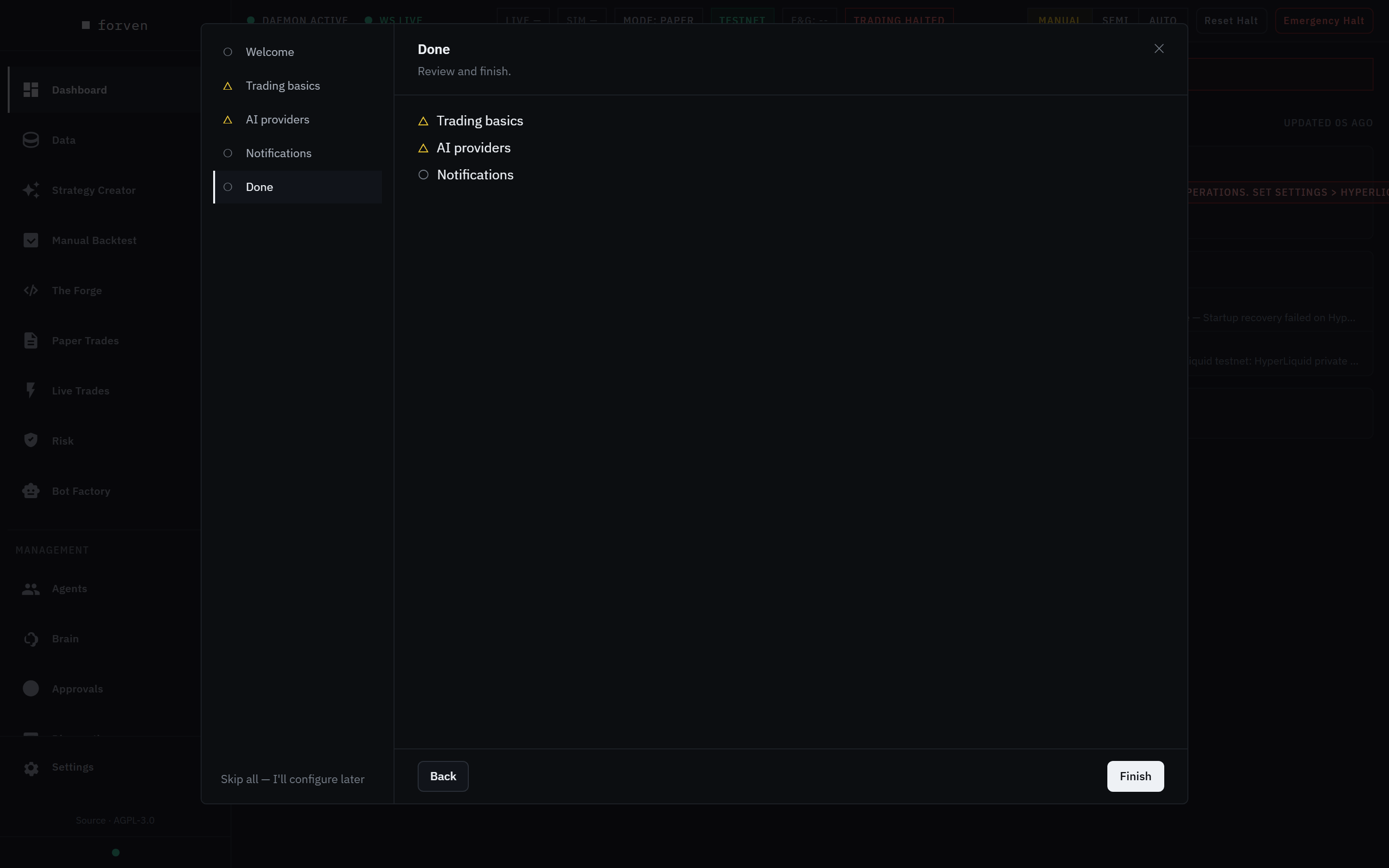 Reopen the wizard any time from Settings → Home → Open setup wizard.
Read the first screen
You land on the Dashboard. On a fresh install with no keys it looks like this:
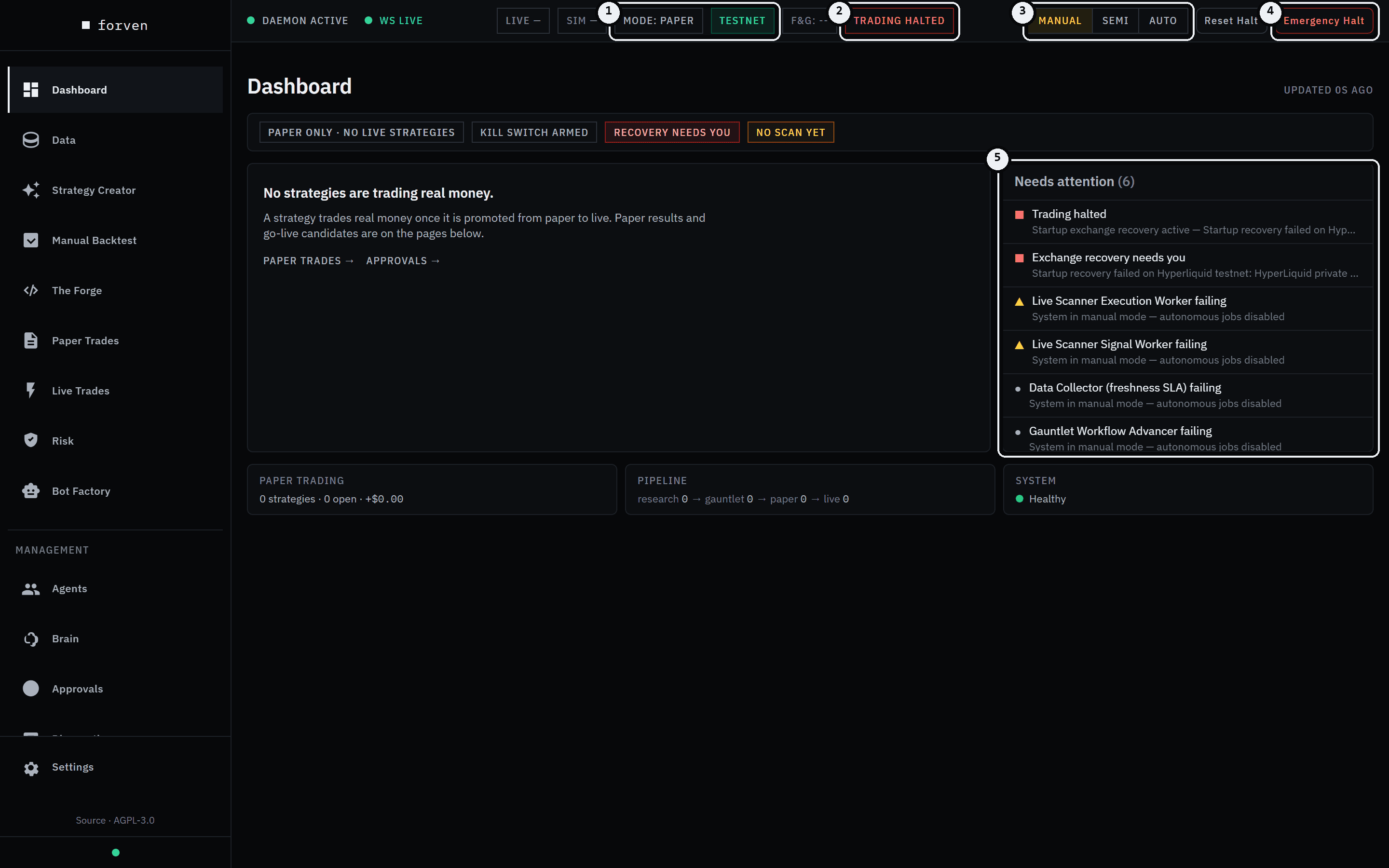 A fresh install with no exchange or AI keys. Numbers match the list below.
- 1Status chips: MODE: PAPER and TESTNET mean no real money can move.
- 2TRADING HALTED. Without Hyperliquid credentials the startup exchange check can't run, so the app reports trading as halted. It's about the exchange connection that live orders use — backtests, the gauntlet and paper trading carry on regardless. Reset Halt won't clear it; saving Hyperliquid credentials (testnet is fine) does. See troubleshooting.
- 3The system mode switch — MANUAL, SEMI, AUTO. A fresh install starts in Manual, with all background work frozen: nothing runs unless you start it. Semi lets the pipeline test what you submit. See autonomy modes.
- 4Emergency Halt pauses the system and closes any open live positions. It's on every page.
- 5Needs attention collects anything that needs you. On a fresh install it repeats the halt and notes the jobs Manual mode keeps paused.
The notices above the page
A fresh install also stacks a few notices above every page. They're expected, and the screenshots in these docs leave them out:
- Paper + testnet only… — the risk disclaimer. Read it, then click Acknowledge; it won't come back on this browser.
- Action required: No connected & selected model… (red) — an AI slot points at a provider you haven't connected. It stays until you connect one in Agents → Setup → Providers. Nothing in the first seven walkthroughs needs one.
- 6 agents use provider … with no credentials — the same for your agents. Dismiss it with ✕.
- Manual mode - all background work frozen (yellow) — the mode from marker 3, with a Switch to Semi button.
- Trading halted: startup exchange recovery active… (red) — the halt from marker 2, spelled out.
The dashboard lists every notice the app can show.
What you have now
Forven is running in Manual mode, paper only, with the wizard done. The sidebar is your map: research screens at the top (Data, Strategy Creator, Manual Backtest, The Forge), trading screens below them (Paper Trades, Live Trades, Risk), and the management screens — Agents, Brain, Approvals, Diagnostics — under Management.
Next
Walkthroughs
Step-by-step guides with a screenshot of every screen — from a fresh install to a strategy paper-trading on live data, plus the agents and your own AI client.
2. Get your first market data
Download BTC, ETH and SOL history with the Starter preset, watch the download jobs, and check the series landed complete and fresh.