7. Set limits & stop buttons
Learn the three controls that decide what Forven may do on its own — the system mode, the risk limits and Emergency Halt — before you ever need them.
Forven can run research around the clock. This guide covers the controls that keep that in check: how much runs on its own, the limits that halt trading, and the button that stops everything. Learn them on a quiet day.
Before you start
Forven running. About 10 minutes. Nothing in this guide places an order — you'll open each confirmation and cancel it.
Choose how much runs on its own
The switch at the top right of every page sets the system mode:
| Mode | What runs by itself |
|---|---|
| MANUAL | Nothing. Scheduled jobs stop and only what you start runs. A fresh install starts here. |
| SEMI | The pipeline. Strategies you build or submit are screened, tested and promoted through the gates — but agents don't write new ideas on their own. |
| AUTO | Everything. Agents write ideas and build strategies within a daily budget, and the pipeline evaluates and promotes them. |
Every change asks you to confirm, and says plainly what will happen:
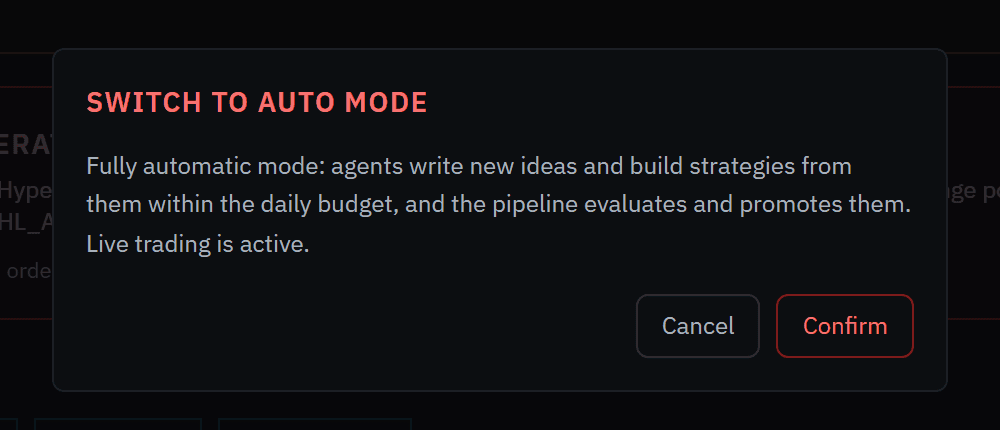 Cancel is focused by default; Escape also cancels.
For the walkthroughs, Semi is the useful setting: your strategies move through the pipeline without any AI key. See Autonomy modes.
Open Risk Command
Click Risk in the sidebar. This is the one page to open when something looks wrong. The Live / Paper toggle at the top switches between real-wallet exposure and the paper books.
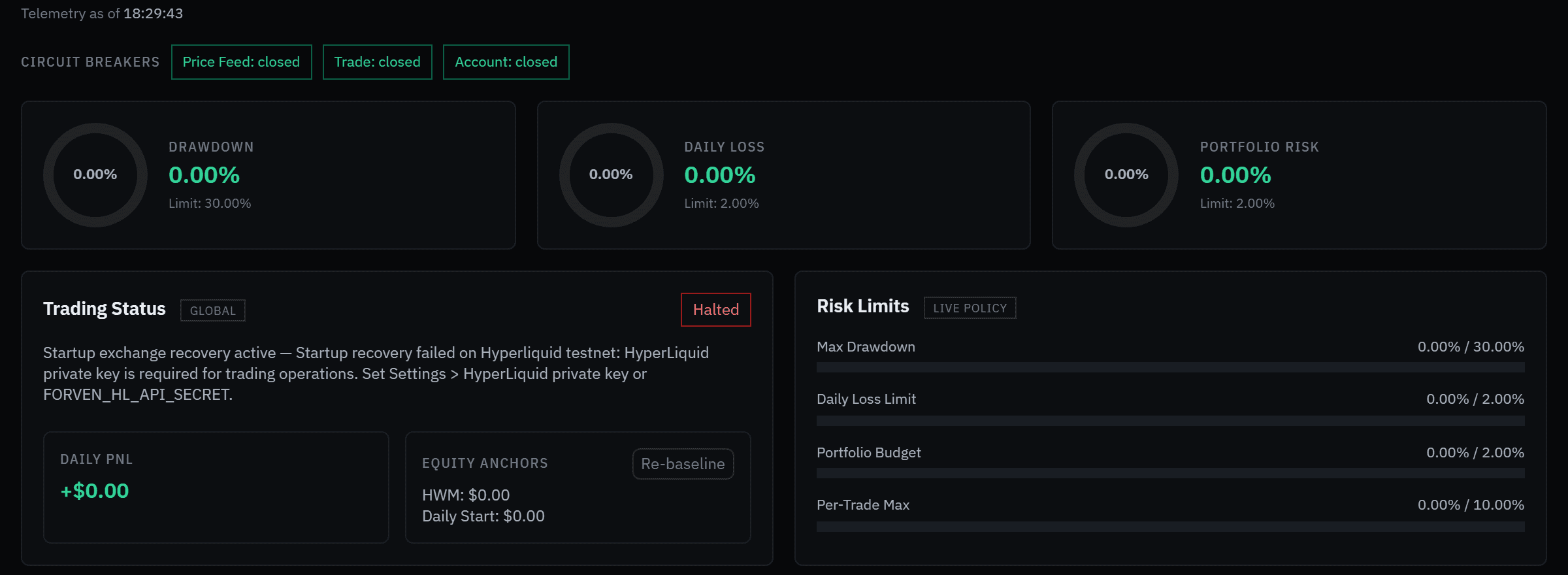 On an install with no exchange keys, the startup exchange check shows here as a halt. It doesn't affect backtests or paper research.
From top to bottom:
- Halt banners — why trading is stopped, if it is, with Reset Trading Halt.
- Circuit breakers — the price feed, trade routing and account. Closed is good: current flows.
- Gauges — drawdown, daily loss and portfolio risk against their limits.
- Trading status and risk limits — the limits actually in force, and the equity anchors they're measured from.
- Live portfolio budget, liquidity guard and regime gate — the guards every new live order passes through.
Set your loss limits
Click Open Settings (or go to Settings → Trading) and scroll to Loss limits.
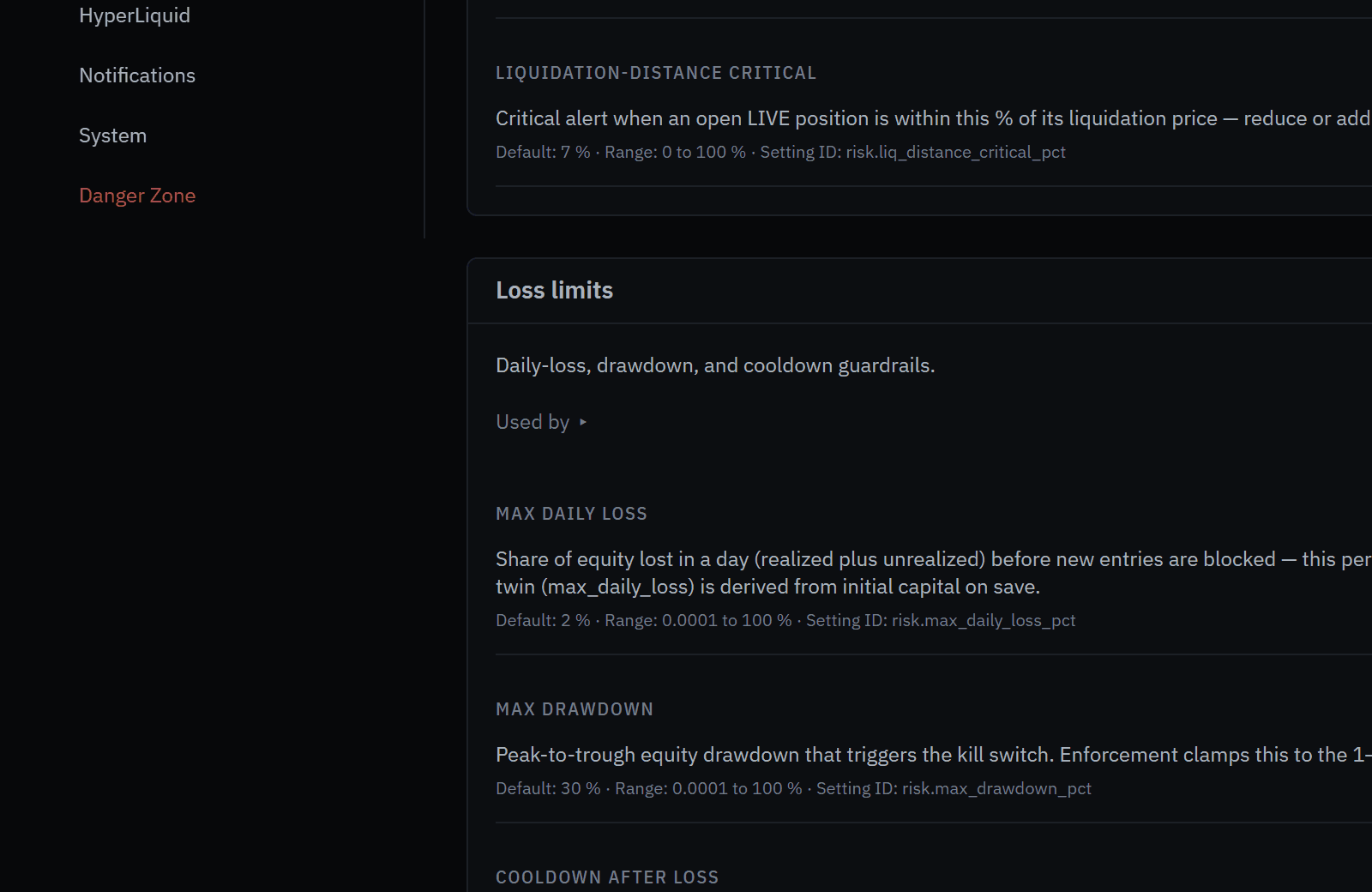 Each field shows its default, its allowed range and the setting ID.
- Max daily loss (default 2%) — the share of equity you can lose in a day before new entries are blocked.
- Max drawdown (default 30%) — the peak-to-trough drawdown that trips the kill switch.
- Max risk per trade (default 10%) under Position sizing, and Max leverage (mainnet) — capped at 3× however you set it.
Edits are staged: a save bar appears at the bottom with Revert all and Save all. Changes that affect real money — switching testnet off, or allowing automatic go-live — also ask you to type LIVE.
Know where the stop button is
Emergency Halt sits in the top strip on every page and at the top of Risk Command. It pauses the system and closes open live positions at market.
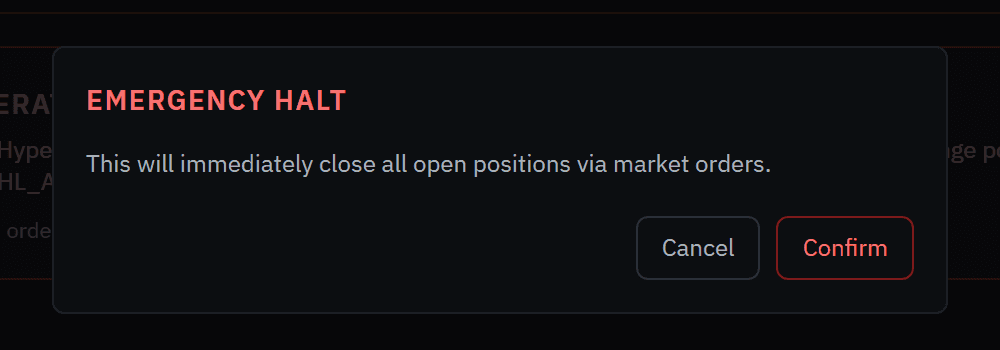 Click Cancel here — this is just so you know what it looks like.
Click Cancel. When you do need it: after it runs, trading stays halted until you click Reset Halt — do that only once you know what went wrong.
Paper is the supported mode
Everything in these walkthroughs is paper: simulated fills on your machine, with no order sent anywhere. A live path exists for experienced operators — it needs exchange credentials, a strategy that has passed paper, a typed GO LIVE with a per-strategy notional ceiling, and, for mainnet, an environment switch only you can set. Read Live trading and Live safety before going near it.
What you have now
You know which mode you're in and how to change it, where your limits live, and where the stop button is.
Next
6. Paper-trade a survivor
Watch a strategy trade forward on live market data with simulated fills — read the paper desk, follow its decisions, and open or manage a position by hand.
8. Put the agents to work
Connect a model provider, give every agent a model, and hand the agents an idea to research — then follow what they built in The Forge.